
Integration guides
Slack automation: useful alerts with limited access
Design Slack notifications and approval handoffs without requesting unnecessary workspace access.
By AutomateHQ · Updated · 2 min read
Before you start
Give a Slack app a specific job, the required scopes and a clear destination. An alert-only workflow usually needs a smaller access footprint than one that reads conversations.
- 01Define the task
- 02Connect safely
- 03Test exceptions
- 04Assign an owner
Decide which channels the app can use
Slack apps use an OAuth installation flow and scoped permissions. Decide whether the app posts updates, reads messages or handles interactive actions before requesting access. Have the workspace owner review the scope.
Name the destination channel and the person responsible for the underlying process. A successful message post does not mean the business task is complete.
Send an alert with a link to the task
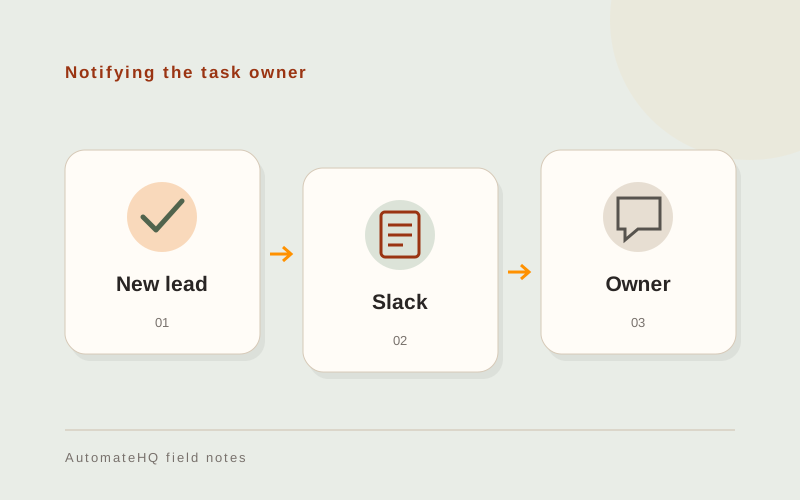
An enquiry can create a CRM record and notify the responsible team with a link. Keep the authoritative status in the CRM and use Slack to draw attention to it. Avoid copying a full customer record into a broadly visible channel.
For an approval flow, connect the response to the exact request and verify that the person acting is allowed to approve it. Display the latest state so a stale button does not cause a second action.
Test stale approvals and failed alerts
Test a missing channel, revoked access, a repeated event and an action taken after the request has already closed. Verify that private details are visible only to the intended audience.
Decide how alerts should be grouped. A high-volume workflow that posts every event can hide the urgent exceptions.
Give failed alerts a separate destination
If Slack access fails, posting another Slack message will not alert anyone. Agree another way to notify the owner and keep the unfinished task in its source system.
Record which channels the app uses and who can change them. Recheck the audience when a team moves a process to a different channel.